Budget
The Budget screen provides a high-level overview of your categorized income and expenses, grouped by month. It helps you monitor how closely you're following your financial plan over the year. You can switch between 1, 3, 6, or 12-month views, track performance by category, and easily spot over- or under-spending.
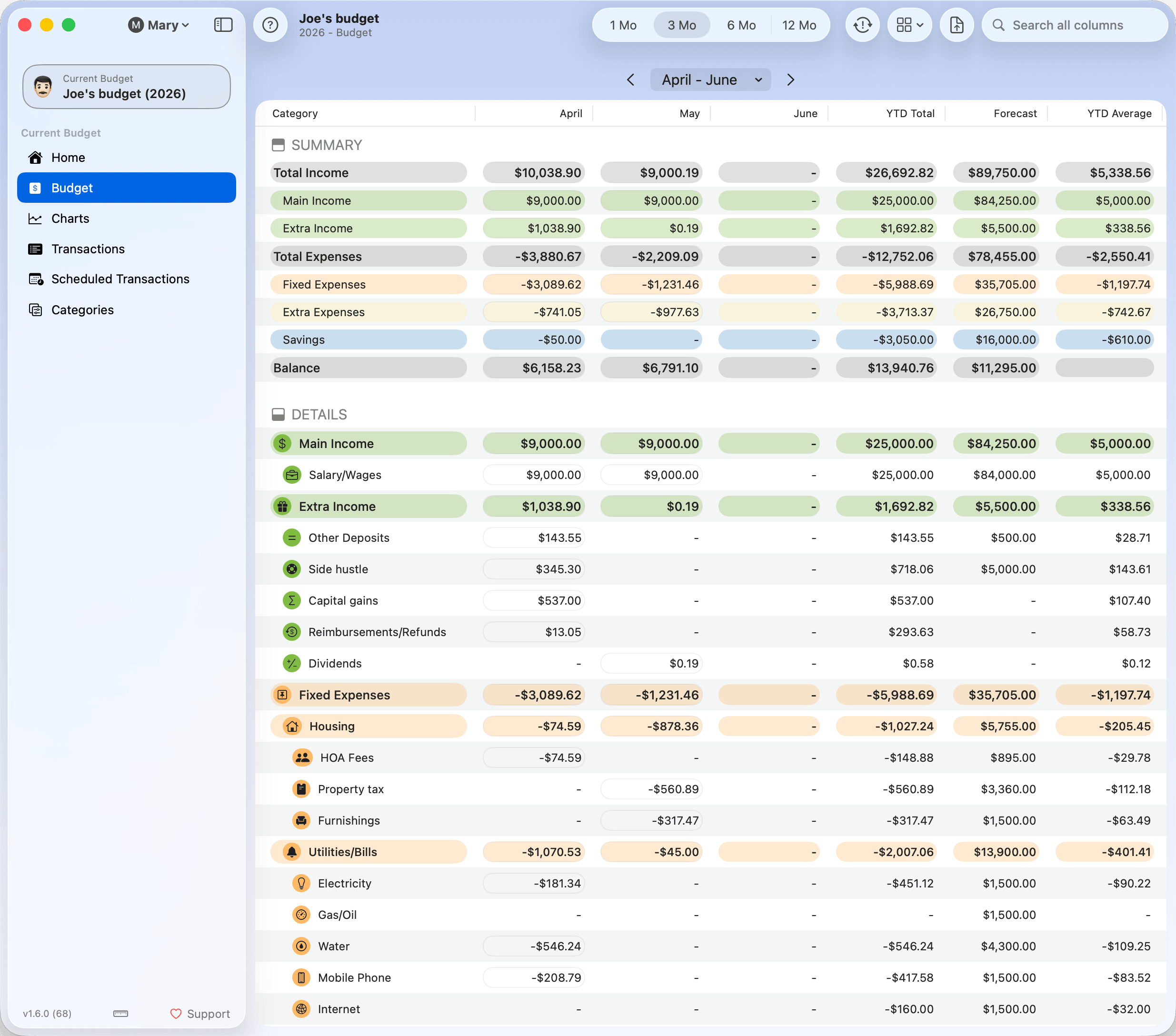
Use this screen to fine-tune your monthly allocations, compare your plan against YTD actuals, review the moving average, and adjust future targets based on real-world trends.
Each cell in the budget table represents the total amount for a category in a given month. Hovering over a cell reveals a red border — click it to see a detailed list of transactions that contribute to that total.
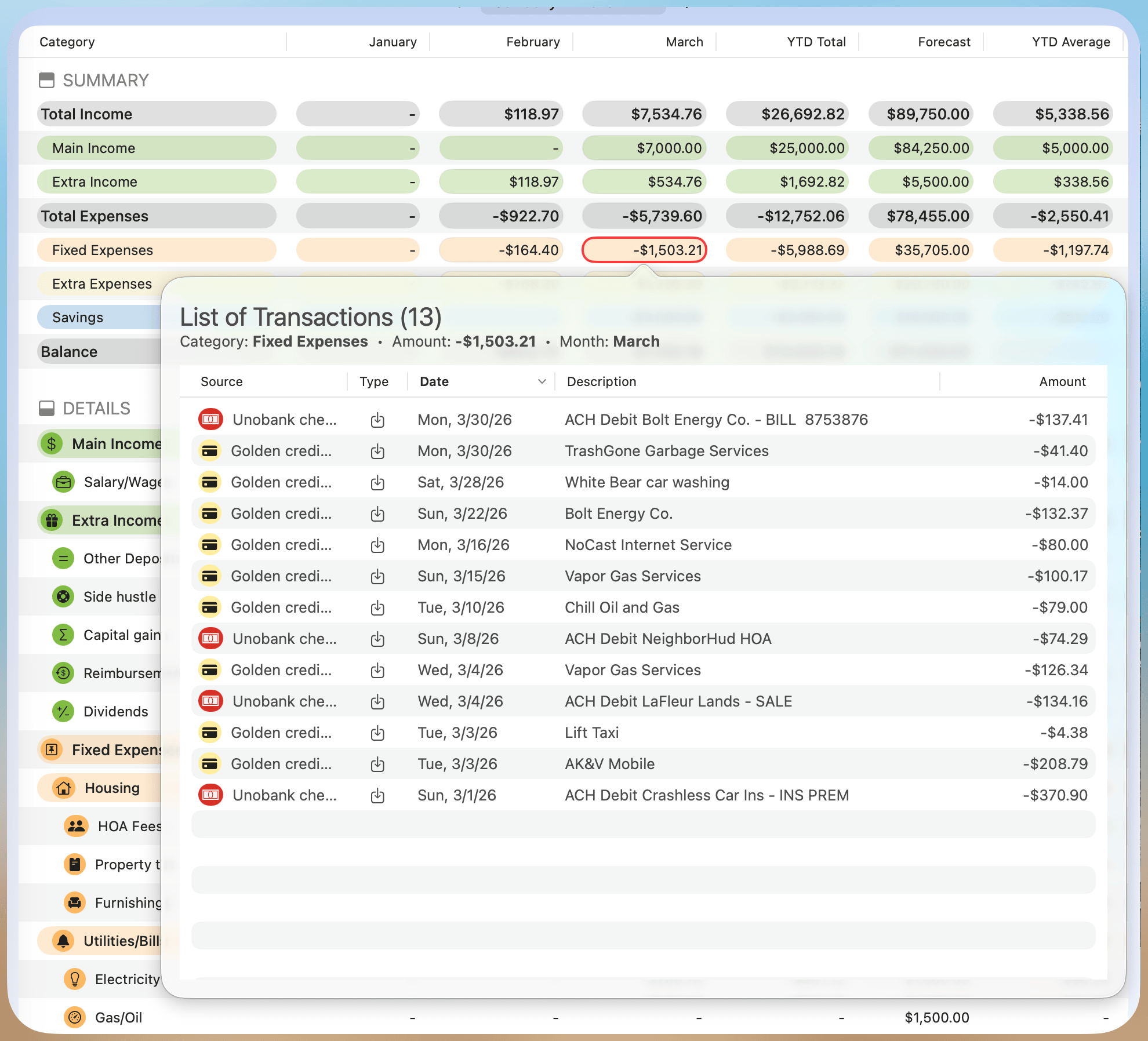
Click any column header in the transactions list to sort by that column; click again to reverse the order. The sort order isn't saved between launches — the table always opens with its default sort.
Toolbar

The toolbar provides quick access to essential controls for analyzing, filtering, and managing your budget.
Period Selection (1 Month, 3 Months, 6 Months, and 12 Months)
Use the period selector to change how many months are displayed. Choosing 1, 3, 6, or 12 months allows you to zoom in for more focus or out for a broader view. The setting applies to all categories shown in the table.
Budget Recalculation
This button recalculates your budget based on the latest available transactions. It’s especially useful after importing data or modifying categories. Depending on your preferences (see Settings), this may also happen automatically.
If you prefer full manual control, auto-recalculation can be disabled so you can trigger it only when needed.
Note: This button is hidden when an archived budget is selected. See Archived Budgets for details.
View Options
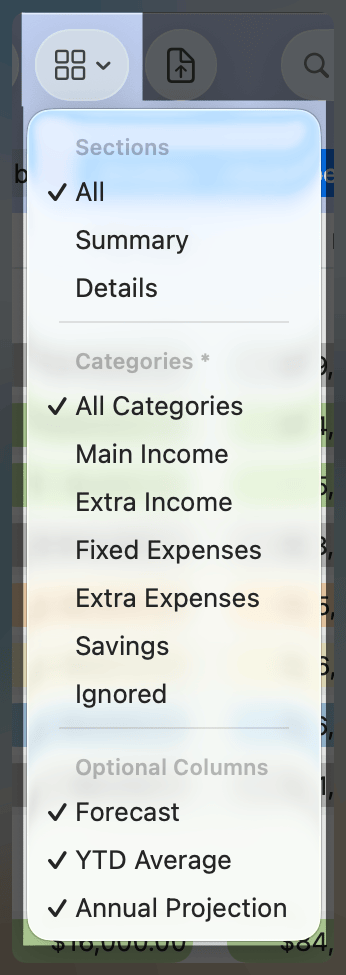
The view menu allows you to further customize the budget display. Options include:
- Sections: Show All, Summary, or Details sections.
- Categories: Filter by top-level budget categories.
- Optional Columns: Show or hide Forecast and YTD Average columns.
Use these controls to tailor the table layout to your current focus.
Export to CSV
This button allows the current budget to be exported to a local file in CSV format.
Search
The search field instantly filters the category list. Matching is flexible — it works on category names and numeric values (you can type just the digits, no formatting needed). This is handy when working with long budgets or searching for specific numbers.